TL;DR: A DWG-to-KML conversion is four jobs — read the CAD entities, decide which geometry survives, turn planar coordinates into WGS84 longitude/latitude, and write the KML. All four can run in the browser with WebAssembly and proj4, so the drawing never leaves the device. This walkthrough shows the working TypeScript, adapted from the implementation I use on geoo.app.
You have a DWG drawing and want to see its parcel boundaries in Google Earth. Getting a useful KML out of it takes a few distinct steps. Read the CAD entities, work out what their coordinates mean, and write the geometry in a format the map can use.
All of that can run in a browser. JavaScript reads a file selected on the user's device, WebAssembly parses the DWG, and client-side code handles reprojection and export. The server supplies the application and its runtime assets. The drawing itself can stay on the device throughout conversion.
This is the approach I use while developing geoo.app. The examples below are adapted from the project's implementation and written in TypeScript. They deliberately cover a small subset of CAD geometry: 2D points, straight lines, and lightweight polylines without arc segments. More complex entities need their own adapters.
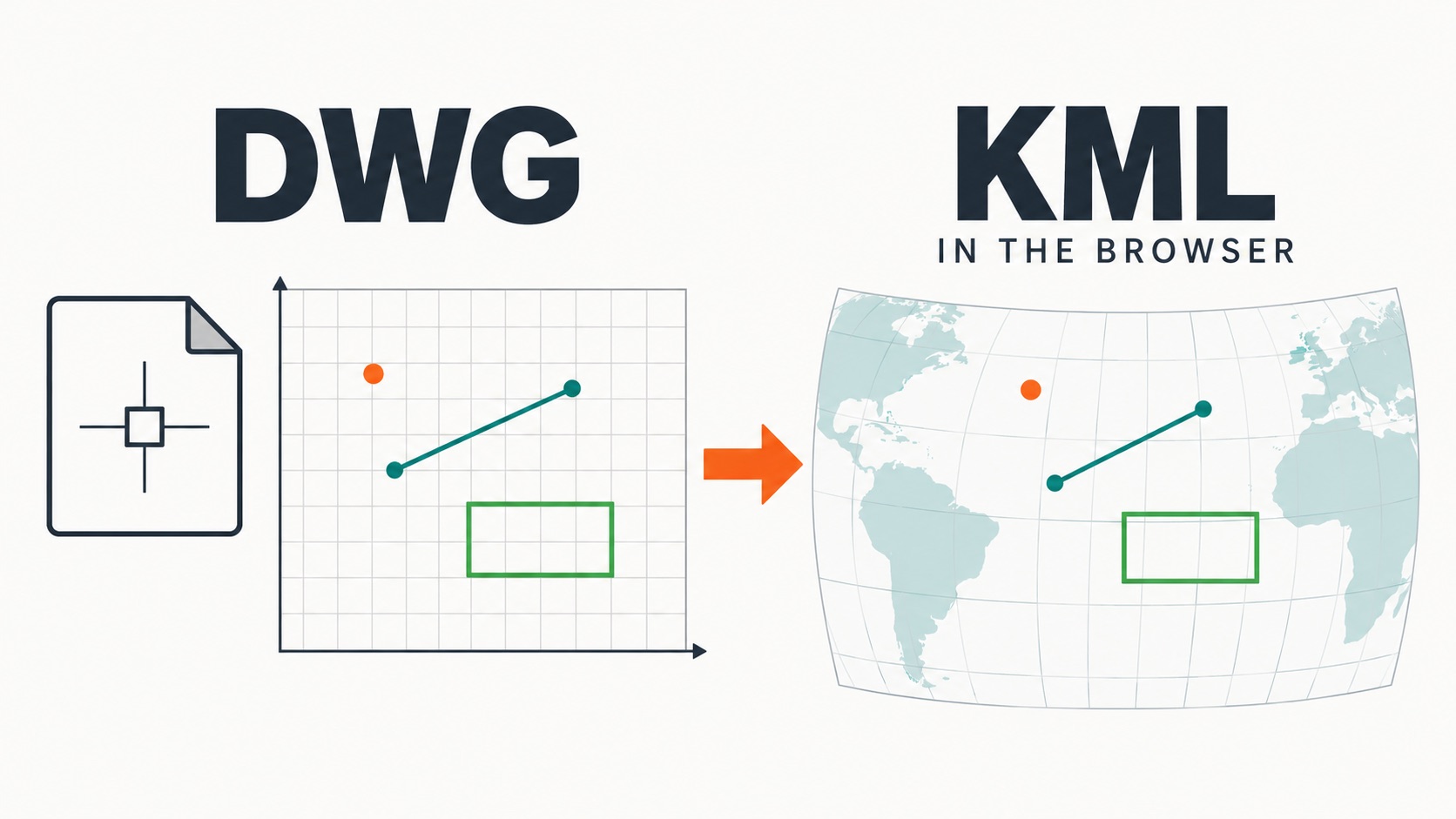
Figure 1. A conceptual view of geometry conversion. It does not imply that every piece of CAD information survives the export.
Decide what you want to extract
A DWG can contain model-space geometry, text, dimensions, block references, layouts, and other CAD information. KML describes geographic objects, including points, lines, polygons, and their associated properties.
For a parcel overlay, the boundary and its location usually matter first. Preserving text placement, line patterns, and fills is a larger job. Each needs an explicit conversion rule; a geometry parser alone will not reproduce a finished drawing.
I start with 2D geometry and basic properties such as the layer name. A POINT becomes a point, a LINE becomes a line segment, and a lightweight polyline becomes a line string. A closed polyline can become a polygon when the application knows it represents an area boundary.
That last decision belongs to the application. A closed line is not automatically an area in every drawing. This example treats closed polylines as polygons for simplicity. A product can expose an "export as polygon" option instead.
Circles and arcs need to be approximated by vertices, with a trade-off between shape accuracy and output size. Block references require the block definition and its insertion, scale, and rotation transforms. Exporting only an insertion point leaves out the geometry inside the block. A conversion report should make these omissions visible by recording unsupported entity types and skipped counts.
Read the DWG with WebAssembly
A text parser can read some forms of DXF. DWG uses a different format. Reading it line by line as a string, or changing its extension, will not perform a conversion.
The project uses @mlightcad/libredwg-web, a LibreDWG-based parser that runs in the browser. The libredwg-web project documentation describes the library and its APIs.
Install the dependencies first. These snippets use the 0.7.9 parser interface from the project. Check the type definitions and runtime asset paths when upgrading.
pnpm add @mlightcad/libredwg-web@0.7.9 proj4
pnpm add -D @types/geojson
Copy the matching package's WASM runtime assets into a static directory such as public/lib/libredwg/, keeping their filenames intact. Pass the browser-accessible directory to the initializer. After deployment, check that the WASM request succeeds and that the hosting platform has not returned an HTML fallback page in its place.
import { LibreDwg } from '@mlightcad/libredwg-web';

let enginePromise: ReturnType<typeof LibreDwg.create> | undefined;

function getEngine() {
  enginePromise ??= LibreDwg.create('/lib/libredwg').catch(error => {
    enginePromise = undefined;
    throw error;
  });
  return enginePromise;
}

async function readDwg(file: File) {
  const engine = await getEngine();
  const buffer = await file.arrayBuffer();
  const pointer = engine.dwg_read_data(buffer, 0); // 0 means DWG
  if (!pointer) throw new Error('Could not parse the DWG');

  try {
    return engine.convert(pointer);
  } finally {
    engine.dwg_free(pointer);
  }
}
At this point, the selected file has become a CAD database accessible to JavaScript. It was read through the File API. This code does not make a network request containing the drawing.
I cache the initialization Promise so subsequent files can reuse the engine. Native parser data is freed after conversion into JavaScript objects. With a large drawing, the input buffer, parser data, and exported objects can all occupy memory at once. Releasing native allocations matters when users convert several files in a row.
In React or Next.js, run this code on the client. The parser can be loaded dynamically when a user selects a DWG, rather than during every page visit. Also serialize jobs on a shared engine, or disable submission while a conversion is running, so repeated clicks do not start overlapping work.
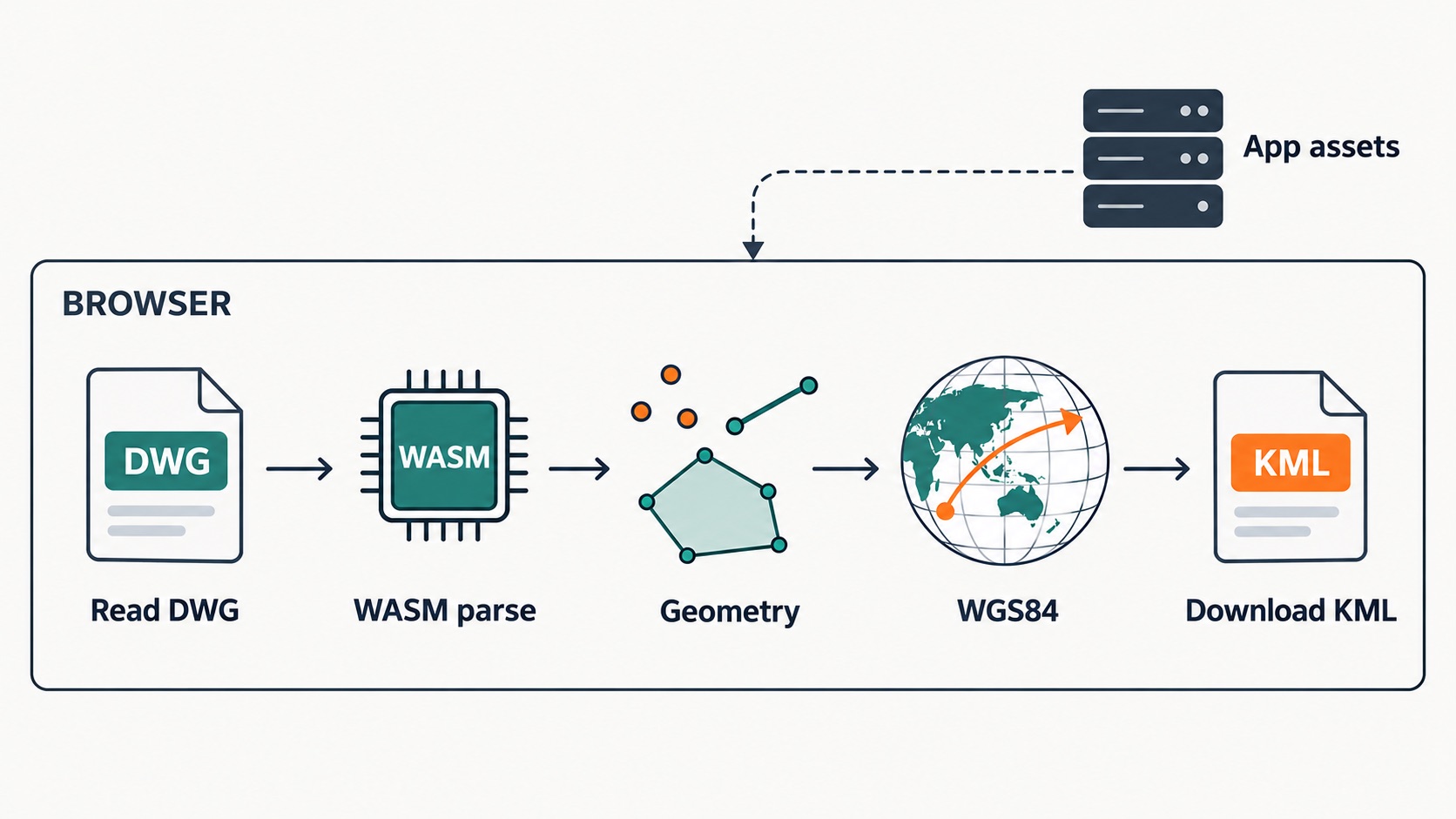
Figure 2. The drawing is processed in the browser. The page and WASM runtime may still need to be downloaded over the network.
Normalize the geometry before exporting
The parser returns CAD entities. I convert these into a GeoJSON-shaped representation before handling coordinates and export. That gives preview code and other exporters the same geometry to work with, instead of mixing KML formatting into every entity adapter.
There is an important qualification here. Before source coordinates have been converted to WGS84, this is an internal data structure that borrows the shape of GeoJSON. Do not publish projected XY coordinates as if they were a standards-compliant GeoJSON file.
The following adapter handles three entity types and retains the layer name in properties. It skips lightweight polylines with a nonzero bulge. A bulge describes an arc segment; simply joining its endpoints would change the shape.
import type {
  DwgEntity, DwgPointEntity, DwgLineEntity, DwgLWPolylineEntity,
} from '@mlightcad/libredwg-web';
import type { Feature, Point, LineString, Polygon } from 'geojson';

type Shape = Point | LineString | Polygon;
type Item = Feature<Shape, { layer: string }>;
const xy = (p: { x: number; y: number }) => [p.x, p.y];

function toFeature(entity: DwgEntity): Item | null {
  if (entity.isVisible === false) return null;
  let geometry: Shape;

  if (entity.type === 'POINT') {
    const point = entity as DwgPointEntity;
    geometry = { type: 'Point', coordinates: xy(point.position) };
  } else if (entity.type === 'LINE') {
    const line = entity as DwgLineEntity;
    geometry = {
      type: 'LineString',
      coordinates: [xy(line.startPoint), xy(line.endPoint)],
    };
  } else if (entity.type === 'LWPOLYLINE') {
    const line = entity as DwgLWPolylineEntity;
    if (line.vertices.some(v => v.bulge)) return null;
    const points = line.vertices.map(xy);
    const closed = (line.flag & 1) !== 0;
    if (points.length < (closed ? 3 : 2)) return null;

    if (closed) {
      const first = points[0];
      const last = points[points.length - 1];
      if (first[0] !== last[0] || first[1] !== last[1]) {
        points.push([...first]);
      }
      geometry = { type: 'Polygon', coordinates: [points] };
    } else {
      geometry = { type: 'LineString', coordinates: points };
    }
  } else {
    return null;
  }

  return {
    type: 'Feature',
    properties: { layer: entity.layer || '0' },
    geometry,
  };
}
The example assumes ordinary 2D planar entities. It does not handle object coordinate systems with nonstandard extrusion directions. A production adapter needs to account for OCS-to-WCS conversion before putting entities into a common coordinate space. Model-space and paper-space filtering also need explicit treatment, so title blocks and layout decorations do not become map features.
When the adapter returns null, the caller should record why the entity was skipped. A valid drawing that produces no supported features deserves a different message from a damaged or unreadable file. "No supported geometry found" gives the user a useful next step.
Coordinates decide where the drawing lands
Reading XY values does not tell us where they belong on Earth. A drawing may use meters, millimeters, or a project-specific local grid. Every vertex can be extracted correctly and still end up in the wrong place if the source coordinates are interpreted incorrectly.
KML coordinate tuples use longitude, latitude, and optional altitude. The KML reference documents their order and the altitude modes. This 2D example converts horizontal coordinates to WGS84 and uses ground-clamped output, with longitude first and latitude second.
For a known source coordinate reference system, Proj4js can perform the transformation. Its source-to-target API is documented in the Proj4js repository. For a drawing confirmed to use Web Mercator, the source could be EPSG:3857. That is an example, not a default for DWG files. Use the definition that actually belongs to the drawing.
import proj4 from 'proj4';

function projectPosition(position: number[], sourceCrs: string) {
  const [x, y] = position;
  if (!Number.isFinite(x) || !Number.isFinite(y)) {
    throw new Error('Source coordinates contain invalid values');
  }
  const [lon, lat] = proj4(sourceCrs, 'EPSG:4326', [x, y]);
  if (!Number.isFinite(lon) || !Number.isFinite(lat) ||
      Math.abs(lon) > 180 || Math.abs(lat) > 90) {
    throw new Error('Coordinates are out of range; check the source CRS');
  }
  return [lon, lat];
}

function projectFeature(feature: Item, sourceCrs: string): Item {
  const g = feature.geometry;
  const convert = (p: number[]) => projectPosition(p, sourceCrs);
  let geometry: Shape;
  if (g.type === 'Point') {
    geometry = { type: 'Point', coordinates: convert(g.coordinates) };
  } else if (g.type === 'LineString') {
    geometry = { type: 'LineString', coordinates: g.coordinates.map(convert) };
  } else {
    geometry = {
      type: 'Polygon',
      coordinates: g.coordinates.map(ring => ring.map(convert)),
    };
  }
  return { ...feature, geometry };
}
The range check catches obvious failures. It cannot prove that the location is correct. Coordinates can be within legal longitude and latitude ranges while still being far from the intended site. Check a control point, a known road intersection, or another reliable reference location.
A local engineering grid usually needs control points and registration parameters before it can be related to geographic coordinates. Ask for that information rather than assigning an arbitrary EPSG code. Projected data with zone numbers, different central meridians, or coordinate prefixes also needs its exact definition confirmed.
This example drops Z values. A 3D export needs a decision about the original vertical units, vertical datum, and KML altitude mode. Copying the third CAD coordinate into an absolute altitude field can put objects above or below their intended position.
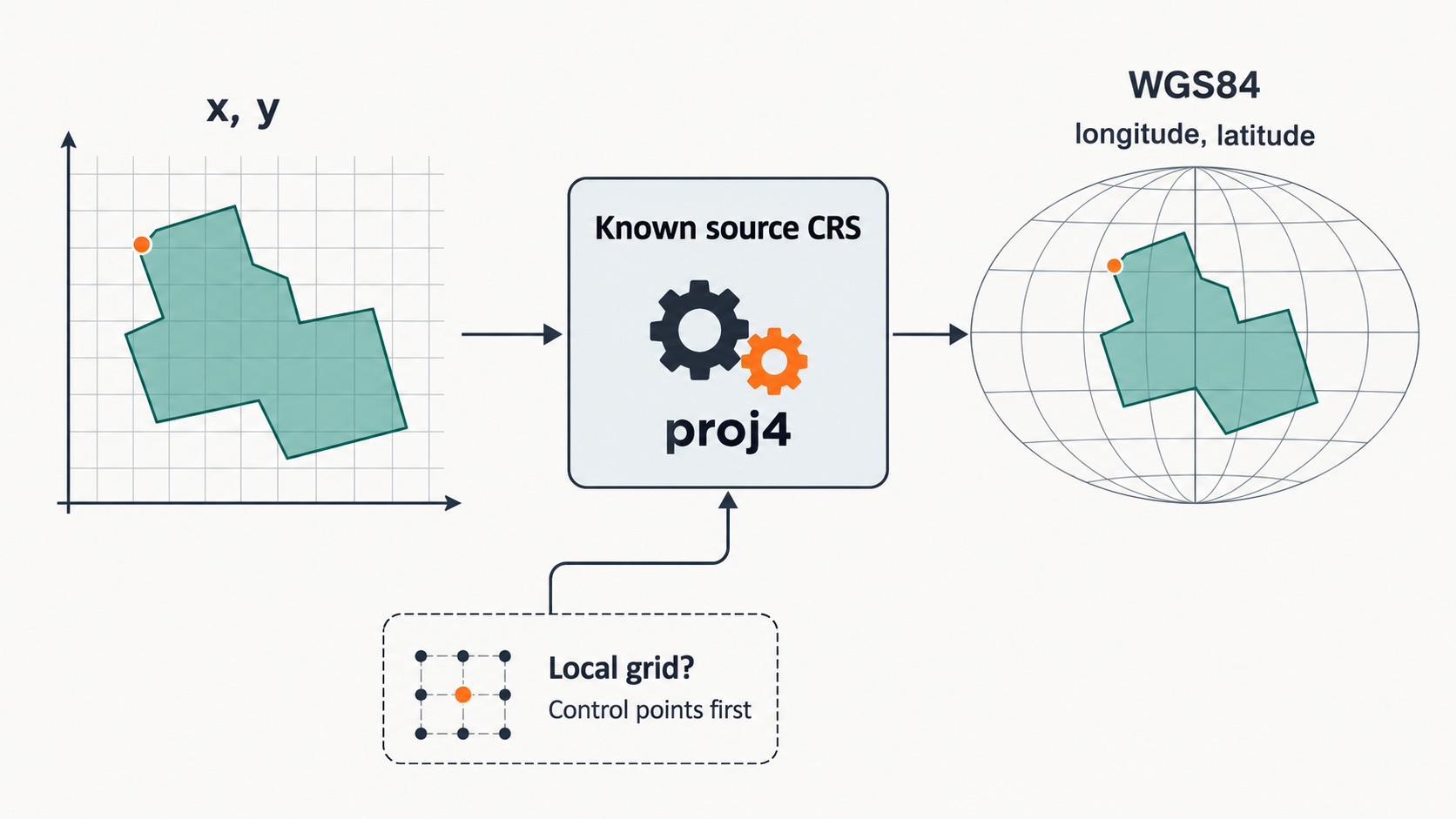
Figure 3. Establish the source CRS first. A local grid needs registration information such as control points.
Write the KML and download it
Once geometry and coordinates are ready, there are a couple of practical export options. A project can use a browser build of GDAL to write KML and share an existing export pipeline. For the point, line, and polygon subset in this tutorial, a small serializer also makes the output easy to inspect.
The function below accepts the Item type defined above and assumes reprojection has already happened. It stores the layer name in ExtendedData and uses the layer plus an index as the feature name. XML characters must be escaped so a layer containing an ampersand does not break the document.
function xml(value: string) {
return value.replace(/[\u0000-\u0008\u000B\u000C\u000E-\u001F]/g, '')
.replace(/&/g, '&').replace(/</g, '<')
.replace(/>/g, '>').replace(/"/g, '"')
.replace(/'/g, ''');
}
function toKml(items: Item[]) {
const coords = (points: number[][]) =>
points.map(([lon, lat]) => `${lon},${lat},0`).join(' ');
const ring = (points: number[][]) =>
`<LinearRing><coordinates>${coords(points)}</coordinates></LinearRing>`;
const placemarks = items.map((item, index) => {
const g = item.geometry;
let shape: string;
if (g.type === 'Point') {
shape = `<Point><coordinates>${coords([g.coordinates])}</coordinates></Point>`;
} else if (g.type === 'LineString') {
shape = `<LineString><coordinates>${coords(g.coordinates)}</coordinates></LineString>`;
} else {
const [outer, ...holes] = g.coordinates;
shape = `<Polygon><outerBoundaryIs>${ring(outer)}</outerBoundaryIs>` +
holes.map(h => `<innerBoundaryIs>${ring(h)}</innerBoundaryIs>`).join('') +
'</Polygon>';
}
const layer = xml(item.properties.layer);
return `<Placemark><name>${layer}-${index + 1}</name>` +
`<ExtendedData><Data name="layer"><value>${layer}</value></Data></ExtendedData>` +
shape + '</Placemark>';
});
return '<?xml version="1.0" encoding="UTF-8"?>' +
'<kml xmlns="http://www.opengis.net/kml/2.2"><Document>' +
placemarks.join('') + '</Document></kml>';
}
function downloadKml(content: string) {
const blob = new Blob([content], {
type: 'application/vnd.google-earth.kml+xml;charset=utf-8',
});
const url = URL.createObjectURL(blob);
const anchor = document.createElement('a');
anchor.href = url;
anchor.download = 'converted.kml';
document.body.appendChild(anchor);
anchor.click();
anchor.remove();
setTimeout(() => URL.revokeObjectURL(url), 1000);
}Put the snippets in the same client module and connect them to a file selection event. The caller must obtain a confirmed source CRS and prevent another submission while the conversion runs.
async function convertAndDownload(file: File, sourceCrs: string) {
  if (!sourceCrs) throw new Error('Confirm the source CRS first');
  const database = await readDwg(file);
  const features = database.entities
    .map(toFeature)
    .filter((feature): feature is Item => feature !== null);
  if (!features.length) throw new Error('No geometry supported by this example was found');
  downloadKml(toKml(features.map(f => projectFeature(f, sourceCrs))));
}
This version exports geometry and a basic property. It does not reproduce CAD styling or automatically create KML folders for CAD layers. To support layer toggles, group features by layer and write a Folder for each group. KML colors also have their own encoding; a CSS color string cannot be copied into a KML style field unchanged.
Check the result with a drawing you understand
Start with a small file whose contents are known. For this project, I prepared a fictional DWG with one point, one line, and one closed area, each on its own layer. The coordinates were explicitly defined as WGS84 when the fixture was created. It contains no real project data.
The browser conversion produced three features and three KML Placemarks. The geometry types and layer names matched the fixture. I also opened the exported KML in the browser viewer to inspect the point, line, and polygon display shown below. That does not replace a check in Google Earth or whichever application the recipient will use.
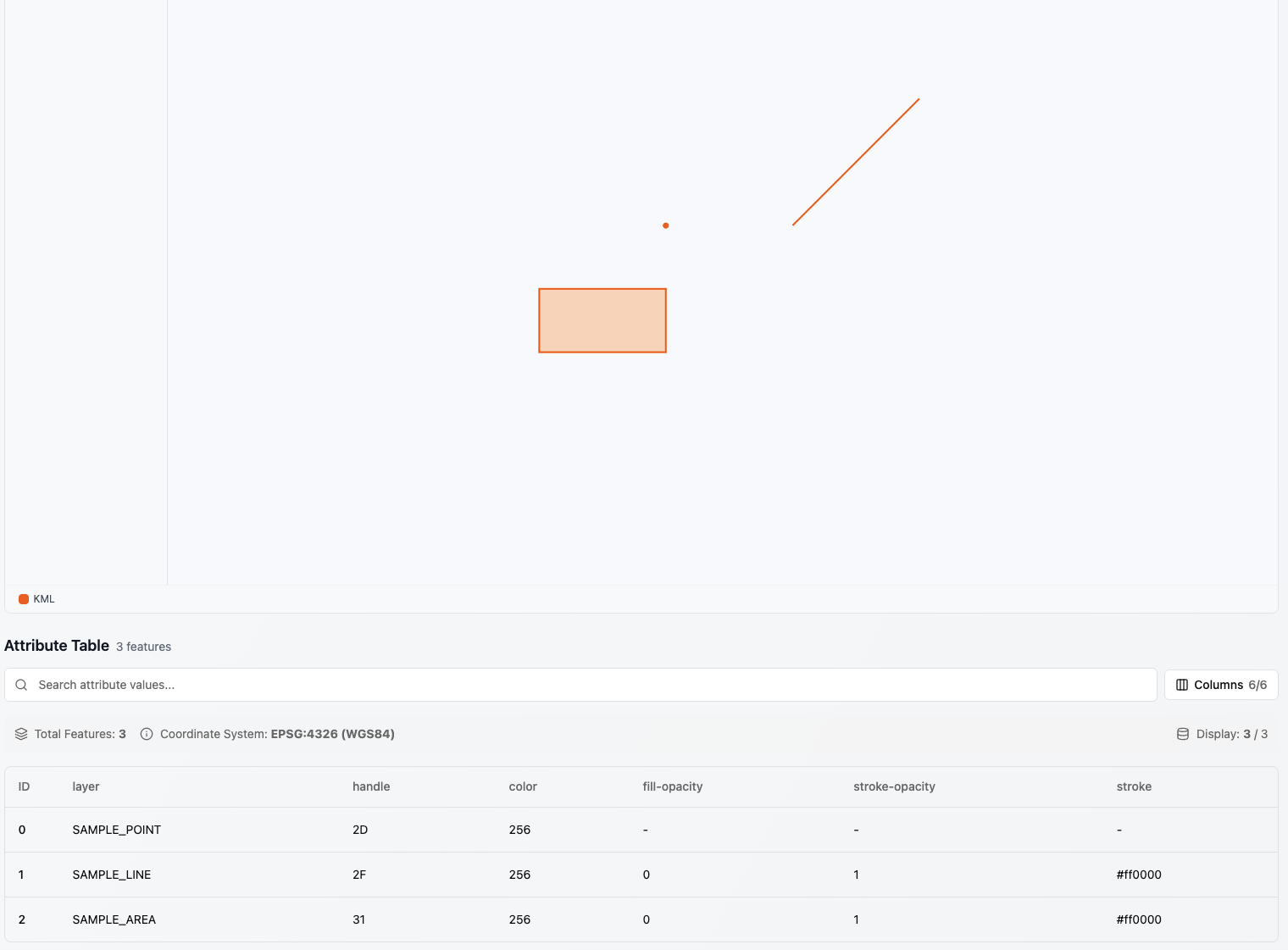
Figure 4. An actual browser KML viewer displaying the fictional WGS84 fixture. This is not a Google Earth screenshot.
A small fixture makes missing objects and properties easier to spot. Once it works, add arcs, text, and block references separately. If a new case fails, there is a much smaller set of code to investigate.
With real drawings, inspect the overall extent and sample a few known positions. Unexpected coordinate magnitudes suggest checking units, axis order, and the source CRS. Straight shortcuts across a curved boundary suggest unhandled polyline arc segments. Missing symbols may come from block references that have not been expanded.
Large files also need a responsiveness check. WebAssembly does not automatically run on a background thread. Synchronous parsing can block the UI just like other work on the main thread. A Web Worker can host parsing and coordinate processing when necessary. Progress messages should correspond to real stages such as reading, parsing, reprojection, and export.
Memory use depends on entity counts, vertex counts, and how many intermediate copies remain alive. A small-file success says little about the largest drawing a particular device can handle. Test representative files and keep out-of-memory and parsing errors understandable to the user.
Use a browser tool if you only need the conversion
For an occasional file, building an application is unnecessary. A browser tool can do the job if it supports DWG input, lets you confirm the source CRS, and processes the file where you expect it to.
Check what happens after file selection. Some sites upload the drawing and convert it on a server. Others load a parser into the browser and create the result locally. For drawings containing site boundaries or facility locations, local processing removes the step of handing the drawing to a third-party conversion server.
Local processing does not mean the page has no network traffic. Scripts, WASM binaries, and other application assets may still need downloading, and a site may use analytics. Distinguish those requests from transmission of the drawing itself. Developers can inspect the Network panel alongside the implementation to check whether file contents are sent during conversion. An offline requirement is stricter: the runtime dependencies must also be available locally, and the full workflow must be tested without a connection.
I develop geoo.app, which includes a DWG-to-KML converter using client-side parsing and conversion. Select the drawing, confirm the source CRS, then download the KML and inspect it in a compatible map application. It is an option for people who prefer a browser workflow and want to avoid uploading their drawing to a conversion server.
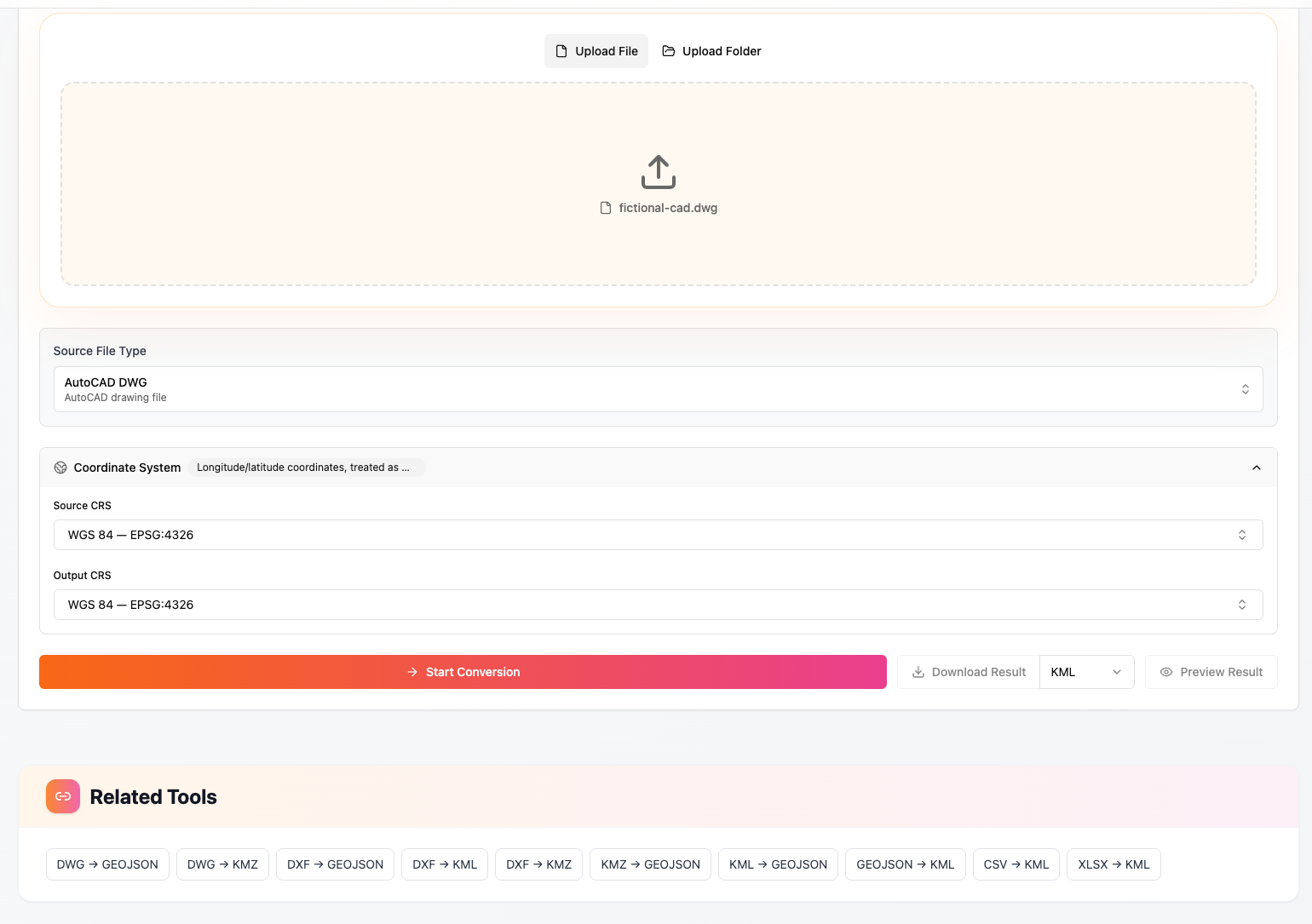
Figure 5. The actual converter interface. This fixture has known WGS84 coordinates, so both source and output CRS are WGS84.
The file still needs a known coordinate system. Ask the drawing provider when it is unclear, and obtain registration information for local grids. Check a known location in the downloaded result before passing it on.
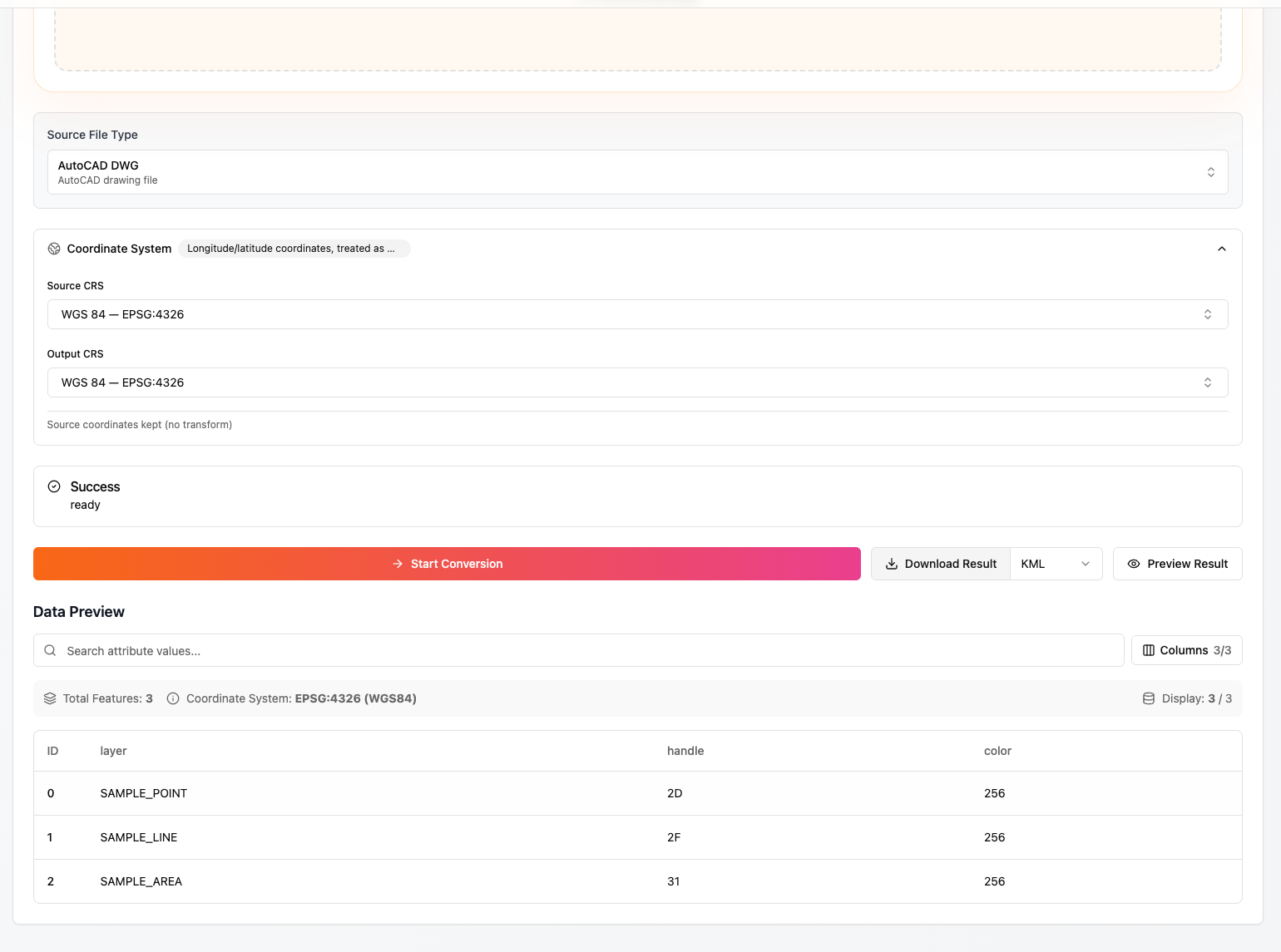
Figure 6. An actual conversion of the fictional fixture containing a point, a line, and a closed area.
For a first attempt, use a drawing with one known point and a short line. Once their positions are right on the map, move on to the boundary geometry and the rest of the drawing.
Related reading
- Prefer not to write code? How to Convert DWG to KMZ — Free, Right in Your Browser walks through the same conversion as a user, no TypeScript required.
- Curious what else this toolbox does? See Introducing geoo.app.