How to Convert DWG to KMZ — Free, Right in Your Browser
A step-by-step walkthrough of converting AutoCAD DWG drawings to Google Earth KMZ files using geoo.app — no software installs, no accounts, and no file uploads. Includes the coordinate-system gotchas every CAD-to-GIS conversion hits.
TL;DR: Open geoo.app's converter, drop in a .dwg, pick KMZ as the target, click Convert, download. No installs, no accounts — and because everything runs locally via WebAssembly, your CAD drawing never leaves your machine. Below is the full walkthrough, run on a real AutoCAD file, including the coordinate-system trap that trips up most CAD-to-GIS conversions.
Earlier I wrote about why I built geoo.app. This post gets practical: one specific, genuinely painful conversion — DWG to KMZ — and exactly how it plays out in the tool.
Why this particular conversion hurts
DWG and KMZ live in different universes that constantly need to talk to each other:
- DWG is AutoCAD's native binary format — the lingua franca of surveyors, engineers and architects.
- KMZ is the zipped flavor of KML, the format Google Earth (and Google Maps, and Google My Maps) eats natively.
The moment a civil drawing needs to be reviewed by a client, a community, or anyone without a CAD license, "can you send me something I can open in Google Earth?" is where the conversation lands.
The traditional answers all sting: desktop GIS or AutoCAD export workflows (license, learning curve), command-line ogr2ogr (fine, if you already know it exists), or an online converter — which quietly uploads your drawing to somebody's server.
The walkthrough
For this test I used a real AutoCAD file — polyline2d_line_2007.dwg from the public nextgis/dwg_samples test collection — so every screenshot below is an actual conversion, not a mockup.
Step 1 — Drop in the DWG
Head to the format converter and drag the file onto the upload panel. The format is detected automatically as AutoCAD DWG:
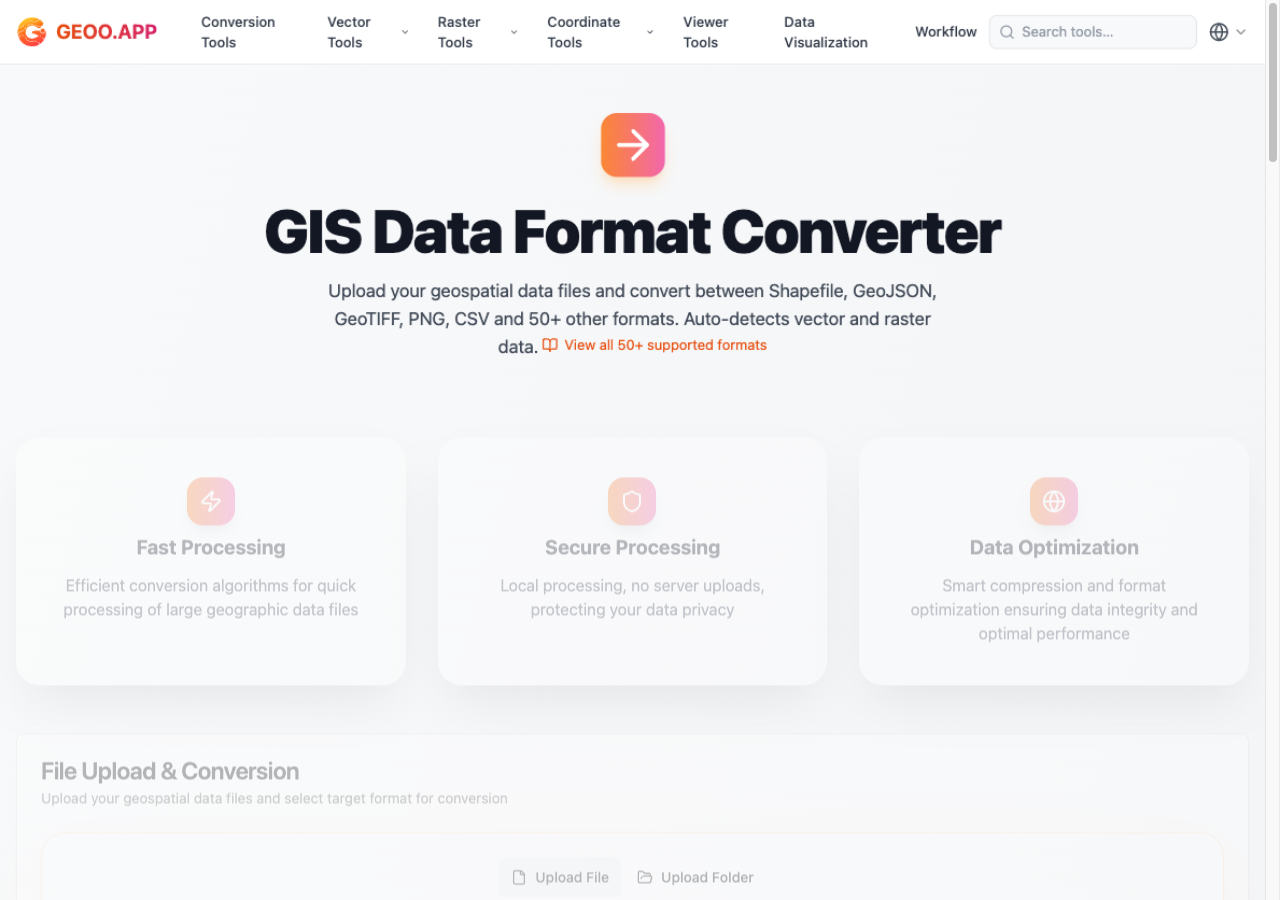
Notice the warning you'll see with many CAD files: "Could not detect the source coordinate system automatically." That's not the tool being difficult — that's DWG being honest. More on this below, because it's the single most important thing to understand when moving CAD data onto a map.
Step 2 — Choose KMZ and convert
In the target format dropdown, pick KMZ. Then hit Start Conversion. For a file this size the work completes in a couple of seconds:
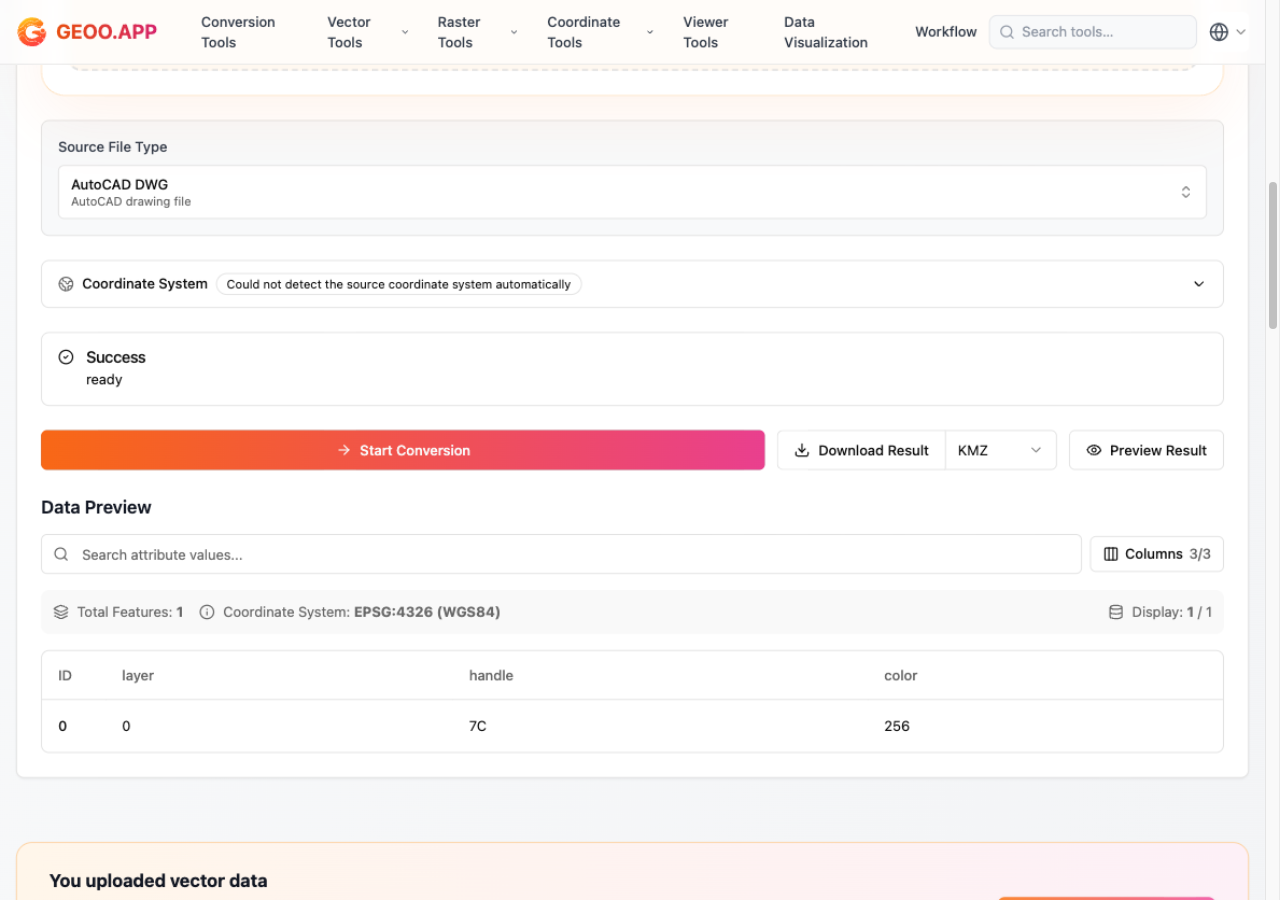
The green Success badge means the geometry made it through the pipeline — read as DWG, held as GeoJSON in memory, and serialized to KMZ — all inside the browser tab.
Step 3 — Preview before you download
This is the step most converters skip. Click Preview Result and you get an attribute table of exactly what will land in your KMZ:
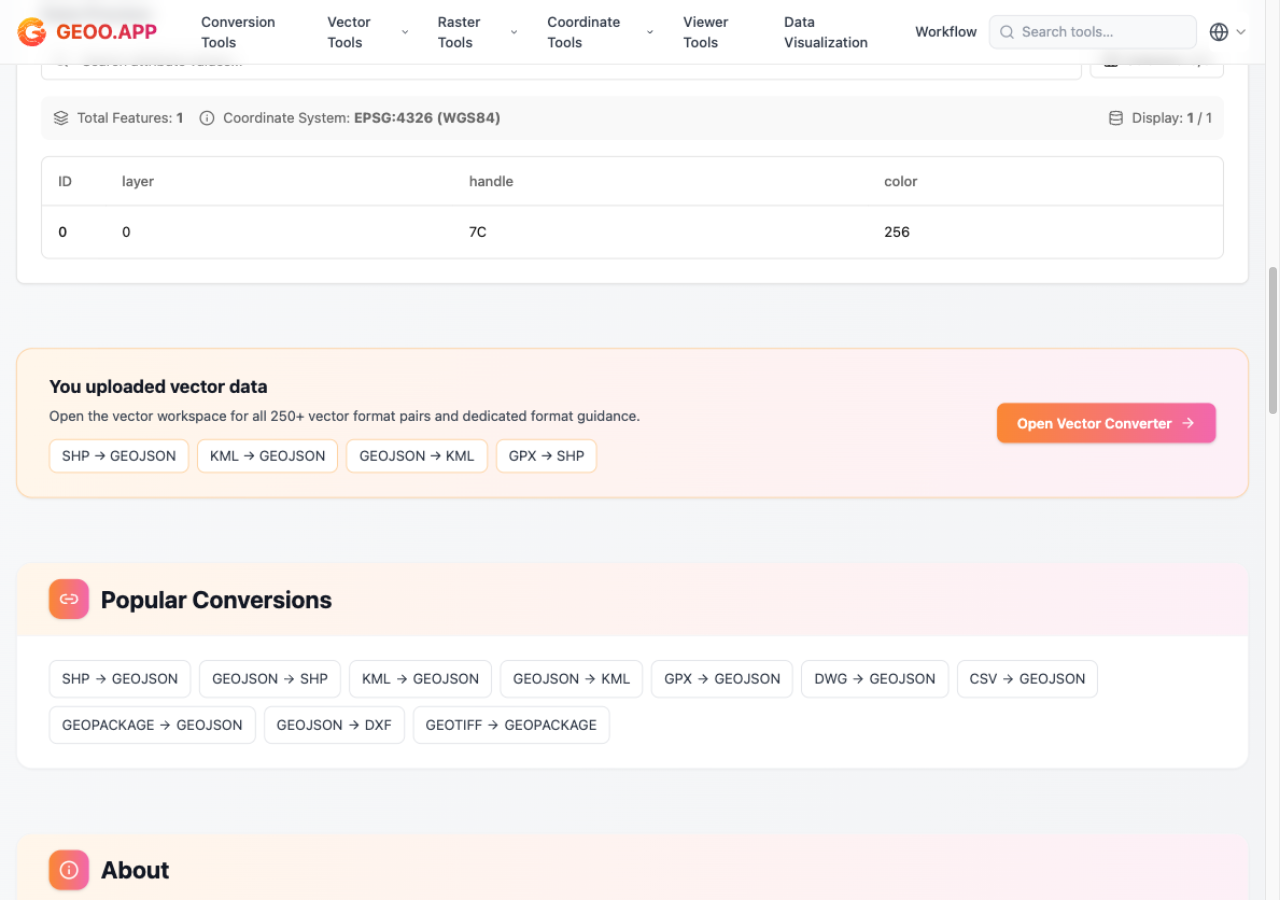
Here the polyline shows up as 1 feature in EPSG:4326 (WGS84) — the coordinate system KMZ requires — and look at the columns: layer, handle, color. The CAD properties survived the trip. Your layers and object handles don't evaporate at the format border; they arrive as GIS attributes you can filter and style on the other side.
Satisfied? Download Result and you have a .kmz you can double-click straight into Google Earth, or import into My Maps.
The coordinate-system reality check
Remember that warning in Step 1? Here's the deal every CAD-to-GIS traveler needs to know.
Most engineering drawings are drawn in local project coordinates — arbitrary origins like (0,0) somewhere on site, often in meters. Geographic formats like KML/KMZ require WGS84 longitude/latitude. If nobody ever recorded which real-world CRS the drawing relates to, no converter on earth can magically place it — the data simply isn't in the file.
Practically, when converting DWG to KMZ you'll hit one of three situations:
- The drawing is already georeferenced (survey drawings often are, in a projected CRS like a UTM zone). Use the converter's coordinate-system picker — every EPSG code is searchable — to declare the source CRS, and the output will be reprojected to WGS84 correctly.
- The drawing is in local coordinates, but you know the anchor. Convert the geometry, then fix the placement — a coordinate-offset tool or a georeferencing pass puts the whole drawing at its true location.
- Nobody knows anything. The geometry (lines, polylines, blocks) still converts cleanly — you'll just find it swimming near (0°, 0°) in the Atlantic until you place it. For pure geometry exchange — "check this alignment," "count these parcels" — that's often perfectly fine.
The converter tells you which situation you're in before you download anything. That transparency is exactly why the preview exists.
Tips for clean CAD → KMZ output
- Purge before you convert. Frozen construction lines and stray text explode the feature count for no benefit. A quick
PURGE/OVERKILLin AutoCAD keeps the KMZ lean. - Think in layers. DWG layers become GIS attributes (you saw
layerin the preview) — a tidy layer structure converts into a tidy, styleable map. - Curves get discretized. Arcs, circles and splines are approximated as polylines during conversion, which is standard practice — just don't expect radius metadata to survive.
- Check the preview table, not just the Success badge. Thirty seconds of eyeballing feature counts and attributes saves an hour of "why is my drawing empty in Google Earth."
Wrap-up
DWG to KMZ is the kind of conversion nobody does for fun — you do it because someone needs to see the drawing. With geoo.app it's now a thirty-second, zero-install, zero-upload affair: drop, pick KMZ, convert, preview, download. And if your journey is the reverse — KML back into CAD formats — the same converter covers that direction too.
Curious about the toolbox this lives in? I covered the full story in Introducing geoo.app.
Frequently asked questions
Is DWG to KMZ conversion really free?
Yes. On geoo.app the converter is free with no sign-up, no watermarks and no daily limits. Because processing happens in your browser via WebAssembly, there is no server cost per conversion to pass on to you.
Will my DWG file be uploaded anywhere?
No. The conversion runs entirely on your device — the file is read, converted and written back locally. Nothing is sent to a server, which matters for confidential or client drawings.
Why does my converted drawing appear at the wrong location?
Almost always because the CAD drawing uses local project coordinates rather than geographic ones. Set the source coordinate system explicitly (search any EPSG code in the converter), or shift the geometry with a georeferencing step before converting.
What is the difference between KML and KMZ?
KMZ is simply a KML file packaged in a ZIP archive, optionally with icons and overlays alongside it. Google Earth opens both; KMZ is the more convenient single-file format for sharing.
Which DWG versions are supported?
Common AutoCAD releases from R14 through the 2013+ format are handled by the in-browser CAD reader. Very new or civil-3D-heavy files with custom objects may partially convert — check the data preview before downloading.